Notion vs Google Keep vs Microsoft OneNote: Which Notes App Fits You?
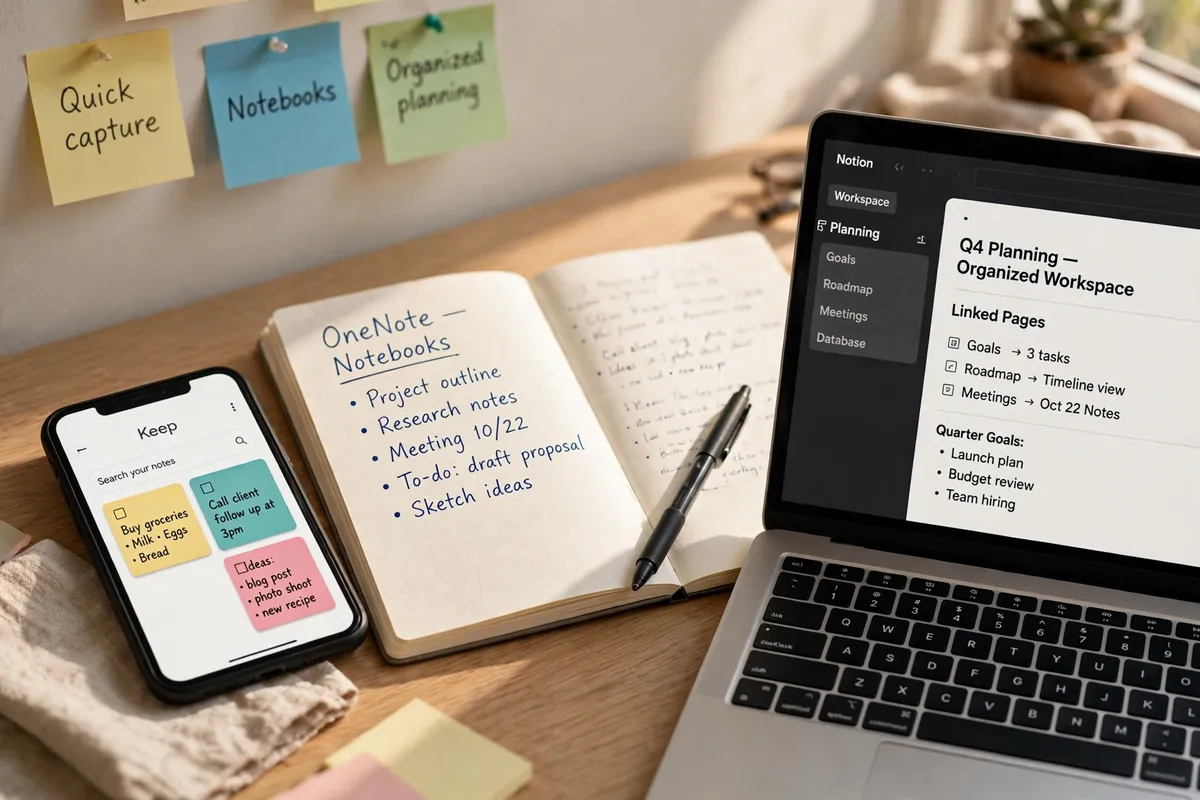
Notion, Google Keep, and Microsoft OneNote all store notes, but they are built for different kinds of thinking. Keep is for quick captures, OneNote is for notebooks, and Notion is for organised projects. Work through the questions below and the right fit usually becomes obvious.
Follow these steps
- Ask what you mostly write down.. If your notes are mostly short reminders, shopping lists, and ideas you capture on the go, you need a fast capture app. If they are longer meeting notes, study notes, or research, you need structure. If they are plans, trackers, and linked pages, you need a workspace. Your answer already narrows the field.
- Try Keep first if speed matters most.. Google Keep opens fast, uses colourful notes and checklists, and is ideal for capturing something in seconds. Its weakness is organisation: with hundreds of notes, searching and sorting gets harder, so it suits people who capture a lot and keep little.
- Try OneNote if you think in notebooks.. OneNote works like a set of notebooks divided into sections and pages, and it handles handwriting, sketches, and pasted material well. It suits students and anyone who keeps long, organised notes by subject, and it fits naturally if you already use Microsoft apps.
- Try Notion if you want notes that connect.. Notion lets you link pages, build simple databases, and turn notes into task lists, trackers, and plans. It is more powerful, but it takes longer to set up, so it suits people who enjoy organising and will actually maintain a system, not just capture notes.
- Check your phone, computer, and accounts.. All three work across devices, but each is smoothest inside its own family: Keep with Google, OneNote with Microsoft, and Notion as a standalone web app. Pick the one you can open quickly on the device you use most, because a notes app you cannot open fast will not get used.
- Commit to one app for a month.. Move your active notes into your chosen app and use only that app for new notes for a month. At the end, check honestly: did you capture notes quickly, and could you find them again? If yes, you have your app. If not, try the next candidate — your notes are still yours to move.
What NOT to do
- Do not use all three apps at once for the same notes. Splitting notes across apps means you will forget which app holds which note, and searching becomes guesswork.
- Do not spend days building a perfect Notion setup before you have notes to put in it. A beautiful empty workspace is not productivity — start simple and add structure only when a real pile of notes needs it.
- Do not treat a notes app as permanent storage for everything. Notes still need a regular tidy: delete what is done, archive what is finished, and keep the active set small enough to browse.
The best notes app is the one you open without thinking and can search without guessing. Start with the fit from this walkthrough, use it daily for a month, and adjust only if finding your own notes is still hard.