How to Stop Neighbors From Using Your Wi-Fi
If your Wi-Fi feels slow for no clear reason, or you spot a device you do not recognise, it is worth checking who is actually on your network. A few straightforward steps will secure it, and you do not need to accuse anyone first — the checks will tell you what is happening.
Follow these steps
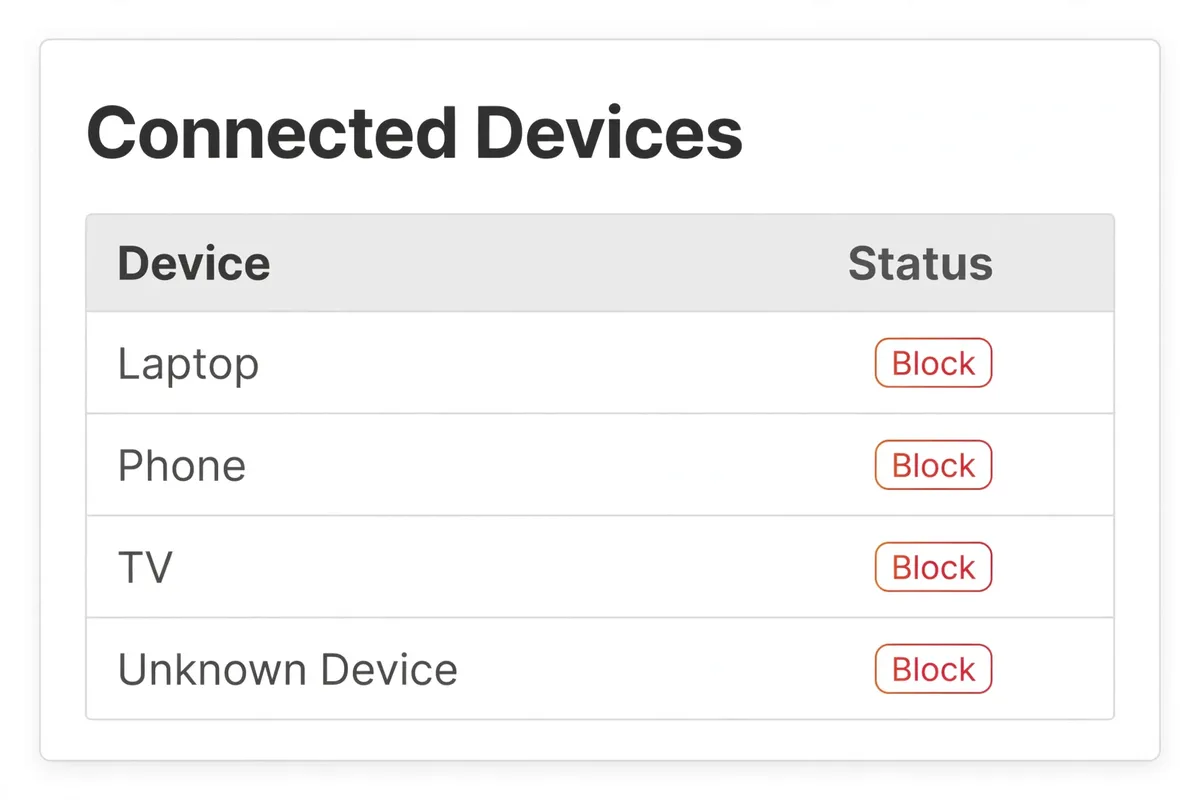
- Look at the list of connected devices. Log in to the router’s admin page and find the connected devices or client list. Compare it with the devices in your home. An unfamiliar name does not always mean an intruder — smart TVs, speakers, and cameras all appear there — but anything you cannot account for deserves attention.
- Change the Wi-Fi password. Pick a strong new password, using several random words rather than a name, address, or simple sequence. Changing the password disconnects every device, including any unwanted ones, so you will need to reconnect your own devices afterwards.
- Use the strongest security setting available. In the router’s wireless security settings, choose WPA2 or WPA3 if offered. Avoid older options such as WEP or open security, which are easy to bypass. If your router only offers older options, that is a sign it may be time to consider a replacement.
- Turn off WPS. WPS is a button or PIN feature meant to make connecting easier, but the PIN method has known weaknesses. Turn WPS off in the router settings and connect devices by entering the password instead — slightly less convenient, noticeably safer.
- Change the router’s admin password too. The admin password protects the router settings themselves, and many routers ship with a well-known default. Change it to something different from your Wi-Fi password so that nobody who guesses one can change the other.
- Reconnect only your own devices. After the password change, reconnect your phones, laptops, and smart devices one by one. If a device you removed reappears on the list afterwards, someone in the home may have shared the new password — or the device belongs to someone you forgot, such as a family member’s tablet.
What NOT to do
- Do not share your new Wi-Fi password widely after changing it; share it only with people in your home and trusted guests.
- Do not rely on hiding your network name alone — it does not stop anyone determined, and it makes connecting your own devices harder.
- Do not use WPS PIN connecting as a shortcut after turning it off; enter the password instead.
- Do not assume a slow connection automatically means neighbours are using it; check the device list before drawing conclusions.
Once the password is changed and WPS is off, unwanted devices stay off unless someone shares the new password. Recheck the connected devices list after a week to confirm the network looks the way it should.