How to Organise Your Desktop and Stop Screenshot Clutter
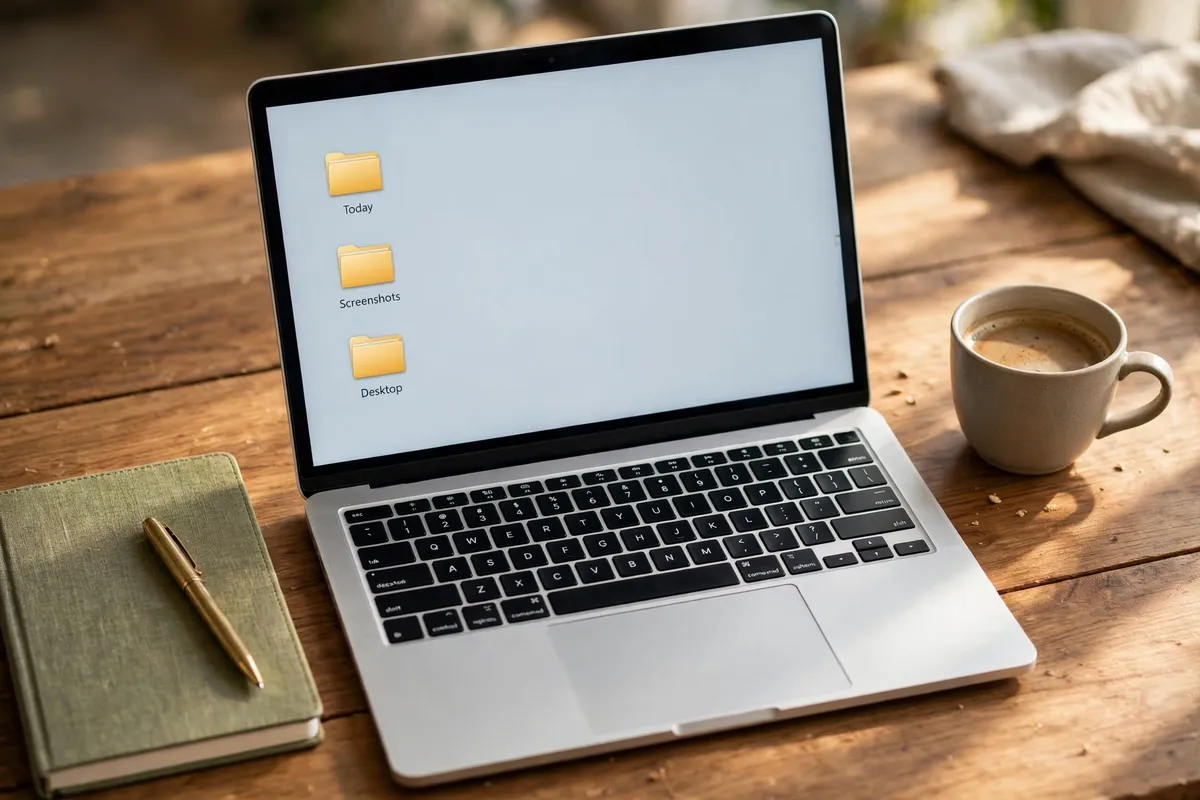
A desktop covered in files and screenshots is not a workspace — it is a second Downloads folder, in full view. The fix is to treat the desktop as a temporary workspace for what you are doing today, and to give screenshots a folder of their own, so nothing lingers there by accident.
Follow these steps
- Clear the desktop in one pass.. Move every file on your desktop into a folder called Desktop Archive, or into the right project folder if you know where it belongs. Do not sort each file perfectly — the goal is a clear desktop today, and you can file the archive properly later if you need to.
- Decide what belongs on the desktop from now on.. The desktop should hold only what you are actively working on today, plus at most a few shortcuts you use daily. Everything else lives in your documents folders. If a file will not be used today, it does not belong on the desktop.
- Change where screenshots are saved.. On both Windows and Mac you can choose a screenshots folder in your screenshot settings, instead of letting screenshots land on the desktop. Point screenshots to a single folder called Screenshots, so they stop appearing on your desktop without you noticing.
- Sort the Screenshots folder once a week.. Once a week, open the Screenshots folder and delete screenshots you no longer need, file the useful ones with the related project, and empty the rest. Screenshots are usually needed for a day or two, not forever, so most of them can go.
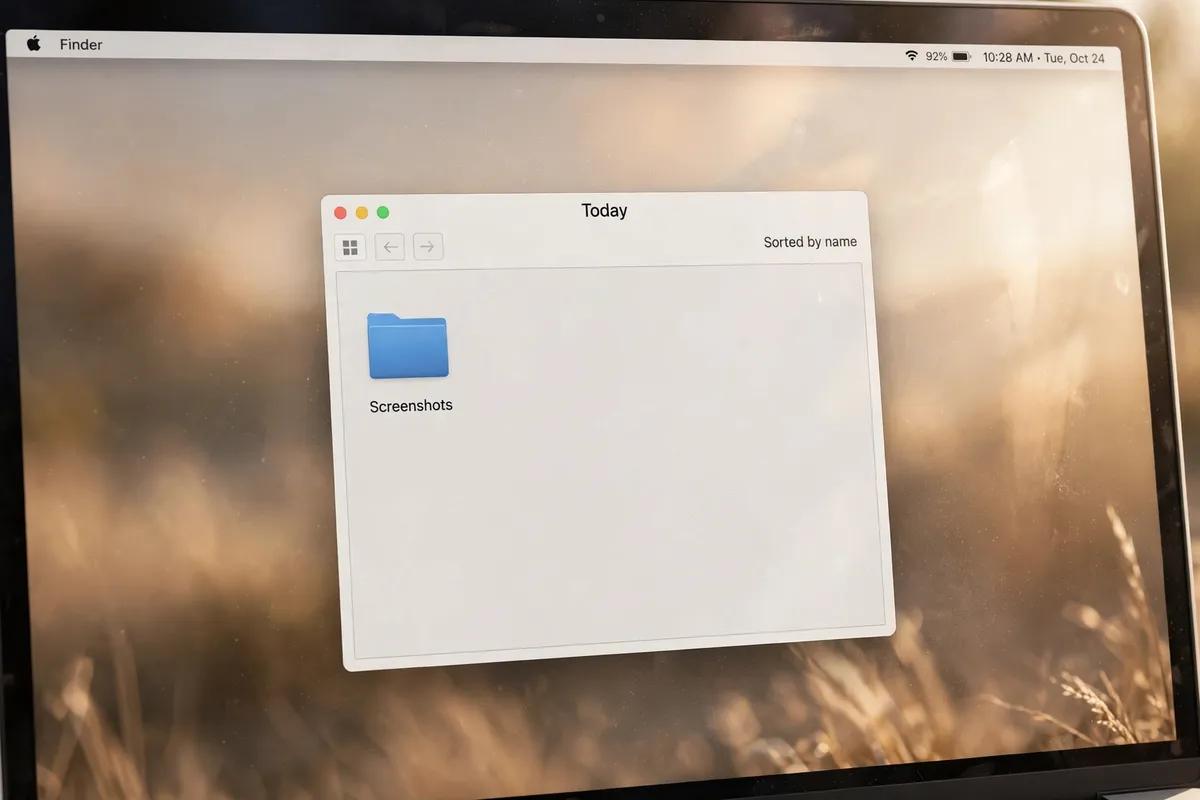
- Use one folder for today's work.. Create a folder called Today or In Progress and keep your current files there instead of scattered on the desktop. At the end of the day, move finished files to their project folders and leave the Today folder ready for tomorrow.
- Hide desktop icons if your system allows it.. If you find a visible pile distracting even when it is small, use your system setting to hide desktop icons. Your files are still there in their folders — you just stop seeing them every time you open your computer.
What NOT to do
- Do not use the desktop as long-term storage. Files left there for months are easy to forget, hard to back up properly, and the first thing you lose track of.
- Do not keep screenshots on the desktop because it feels faster. It feels faster for one screenshot and creates a pile of dozens, which costs far more time to clean later.
- Do not delete desktop files in a panic to get a clean background. Move them to an archive folder first, and delete them later once you are sure nothing important was in the pile.
A clear desktop is a small change with an outsized effect: you open your computer to today's work, not yesterday's clutter. Keep the weekly screenshot sort, and the desktop will mostly look after itself.