Wi-Fi Works but Some Sites Won't Load? Check DNS
If you are connected to Wi-Fi but only some websites fail while others work, your internet connection itself is probably fine. The likely culprit is DNS, the behind-the-scenes lookup that translates a name like a website address into a number computers can reach.

Follow these steps
- Confirm the pattern first. Try two or three well-known sites and one app. If some load and others do not, and the same sites fail on another device on the same Wi-Fi, DNS is a strong suspect. If nothing loads anywhere, treat it as a full connection problem instead.
- Try another browser or device. Open the failing site in a different browser, or on another device on the same Wi-Fi. If it works elsewhere, the problem is in the first browser or device, not your network — clear that browser’s cache or try a private window next.
- Restart the router. Unplug the router for 30 seconds, plug it back in, and wait for it to fully start. This refreshes the DNS information the router hands out to your devices and fixes many short-lived lookup problems.
- Flush the DNS cache on the device. Computers remember old DNS answers in a cache, and a stale entry can keep pointing to the wrong place. Your operating system’s network settings or a quick search for its DNS flush steps will show how to clear that cache — then try the site again.
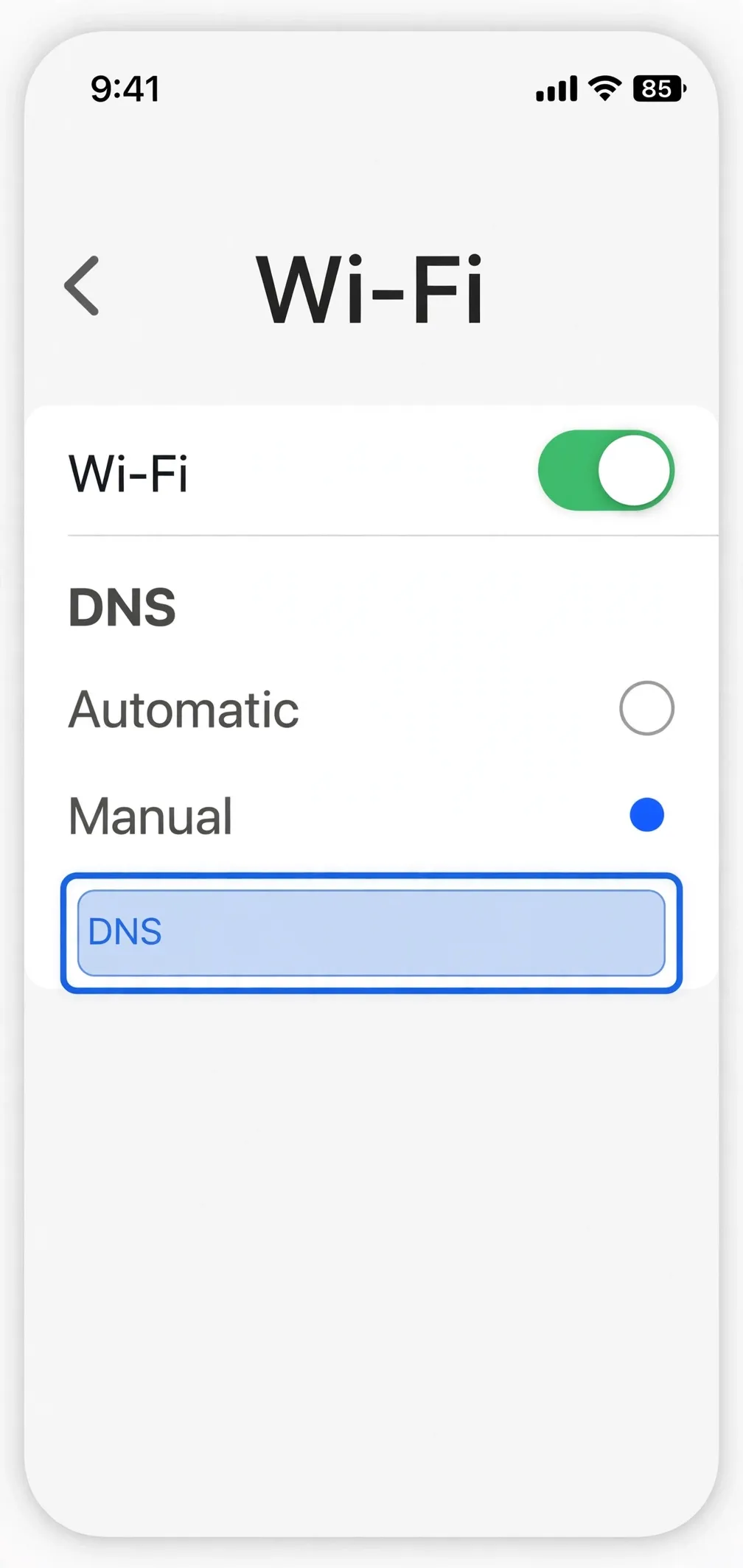
- Try a different DNS service. In your device’s Wi-Fi settings, you can change the DNS server to a well-known public one provided by a major provider, such as the DNS service offered by Google or Cloudflare. Write down the original setting first so you can switch back, then test the failing sites.
- Check whether a VPN or security app is interfering. If you use a VPN, parental filter, or security app, try turning it off briefly and reloading the site. These tools route or filter your traffic and can block individual sites even when the rest of the internet works fine.
What NOT to do
- Do not reset the router to factory settings for a DNS problem — a simple restart usually does the job.
- Do not change DNS settings on every device at once; change one device, test it, and only then apply it more widely.
- Do not install a random “DNS fixer” program; the built-in settings are all you need.
- Do not ignore a site that fails on every device and every network — that points to the site itself being down, not your DNS.
If changing DNS fixes the failing sites, you can leave the new setting in place or switch back after a day to see whether the original problem has cleared. If the same sites fail on mobile data too, the sites themselves are the likely cause.